Free accessibility snapshot for CityLights (W3C BAD demo)
Thanks for taking a look. We checked one page of your website with automated tools and a quick keyboard test, and picked three things that would make it easier for more people to use, with how to fix each one.
Three things worth fixing
1. Form fields without labels
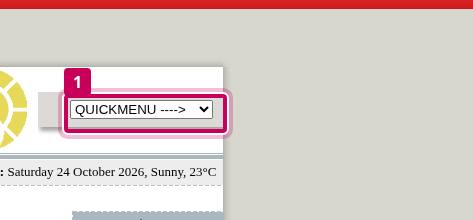
What we found: 1 form field has no label that assistive technology can read. The outlined field is one example.
Why it matters: A screen reader announces an unlabelled field as just “edit text”, so people can’t tell what to type. Visible labels also help everyone, especially on phones.
How to fix it: Give each field a visible <label> connected to it (label for="field-id"). Placeholder text alone isn’t enough, because it disappears as soon as someone starts typing.
2. Images without text descriptions
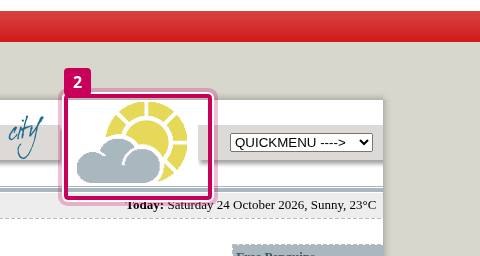
What we found: 33 images are missing a text alternative (alt text). The outlined image is one example.
Why it matters: People who are blind hear nothing useful for these images (or just the file name). If an image is a link or carries information, they miss it entirely.
How to fix it: Add a short alt attribute describing what the image shows or does, for example alt="Fresh bread on the counter". For purely decorative images, use an empty alt="" so screen readers skip them. Most website builders have an “alt text” box in the image settings.
3. Links with no readable name
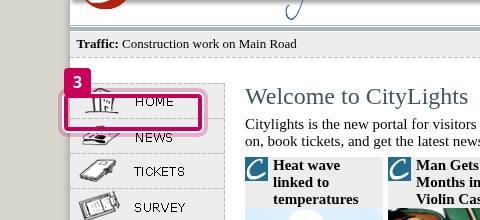
What we found: 7 links have no text a screen reader can announce (often an icon or image link). The outlined link is one example.
Why it matters: A screen reader user hears only “link” with no idea where it goes, so they have to guess or skip it.
How to fix it: Give each link visible text, or if it is an icon, add alt text to the image inside it or an aria-label such as aria-label="Facebook".
Other automated findings
Across this page, axe-core 4.13.0 flagged 46 elements under 6 rules, and Pa11y (HTML_CodeSniffer) reported 41 errors; the two tools overlap a lot, so these counts aren’t added together. Besides the issues above, axe-core flagged 5 elements under these rules:
- Elements must meet minimum color contrast ratio thresholds: 2 elements
- <html> element must have a lang attribute: 1 element
- All touch targets must be 24px large, or leave sufficient space: 2 elements
We pressed Tab through the page and reached 14 links and controls. Each one we reached showed a visible focus change. Focus didn’t get stuck anywhere. The first stop is a skip link (“Skip to inaccessible demo page”).
What this snapshot doesn’t cover
Automated tools catch only part of what the Web Content Accessibility Guidelines (WCAG) cover. Many issues, such as whether alt text actually makes sense, whether a form can be completed with a screen reader, or whether a checkout works with the keyboard, need a person to test. The three issues above are a sample from one page, not a full list, and this snapshot isn’t an audit or a certification of any kind.
Our paid audits add manual keyboard testing and screen reader testing (NVDA and VoiceOver) on the pages that matter most, and a full report of every issue we find with how to fix it.
If you’d like a closer look
There’s no obligation. The fixes above are yours to use however you like. If you’d like us to go further, the Snapshot Audit checks up to 3 pages with manual keyboard and screen reader testing and a plain-English report.